
Connect to Claude
Link your PriceLabs account to Claude to give your AI assistant secure, direct access to your pricing and market data. Follow these steps to get connected.
Get your MCP credentials
Before heading over to Claude, you will need to grab your secure credentials from your PriceLabs dashboard:
- Navigate to Account Settings.
- Select the AI Connector (MCP) tab.
- Copy your MCP URL and Client ID. Keep these handy for the next step!
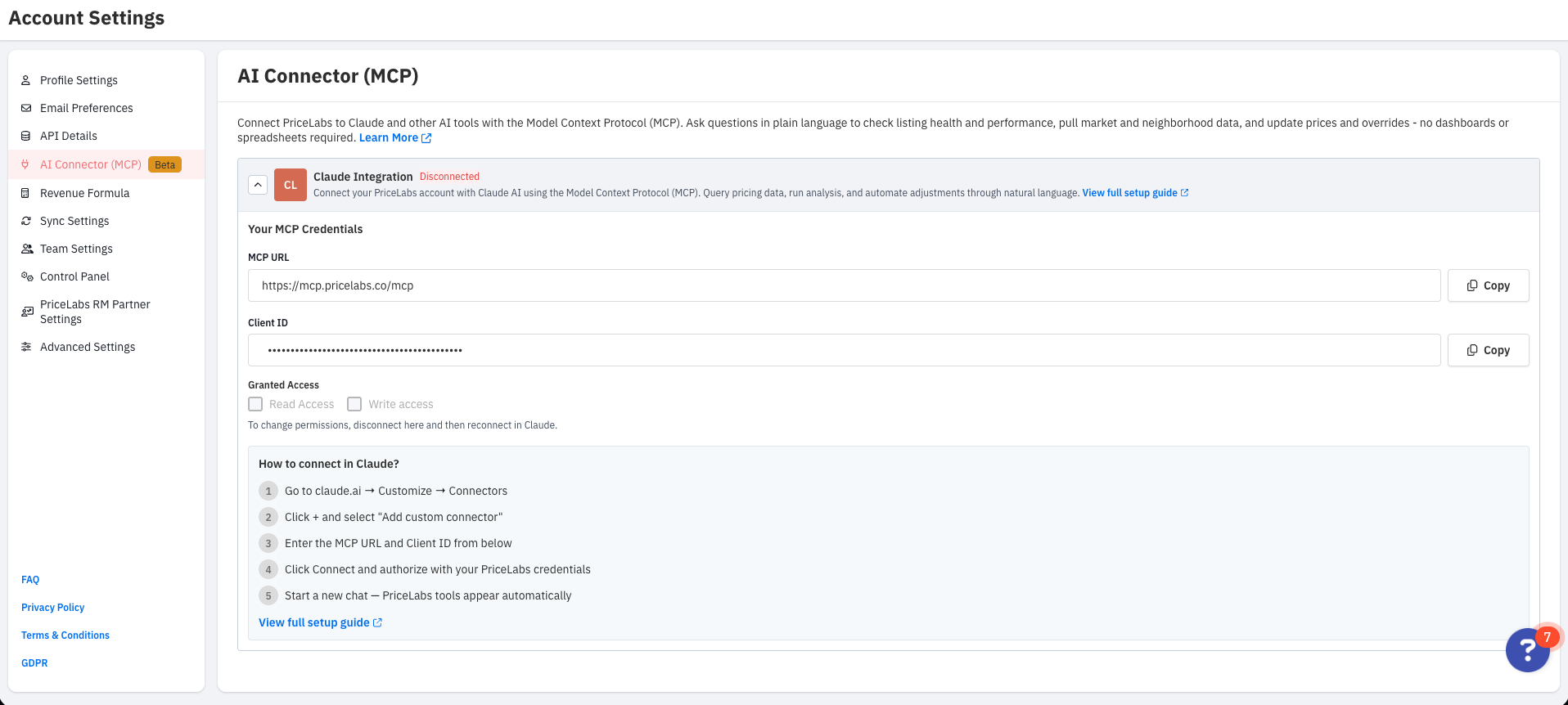
You can choose Read access, Write access, and Customization write access when authorizing the connection. Each is granted on its own — customization write is what allows pricing rules such as seasonality, last minute prices and day of week adjustments to be changed, and write access alone does not include it. To change these permissions later, disconnect from PriceLabs (Account Settings → AI Connector (MCP)) first, then reconnect using the steps below. Disconnecting in Claude alone does not update permissions — see Disconnect from Claude.
Connect in Claude
1. Log into Claude
Go to claude.ai and sign in to your account.
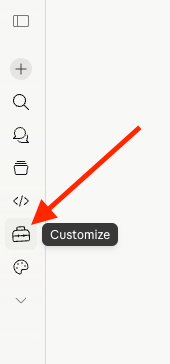
2. Open Customize
Look for the Customize icon (the briefcase) in the left sidebar and click it.
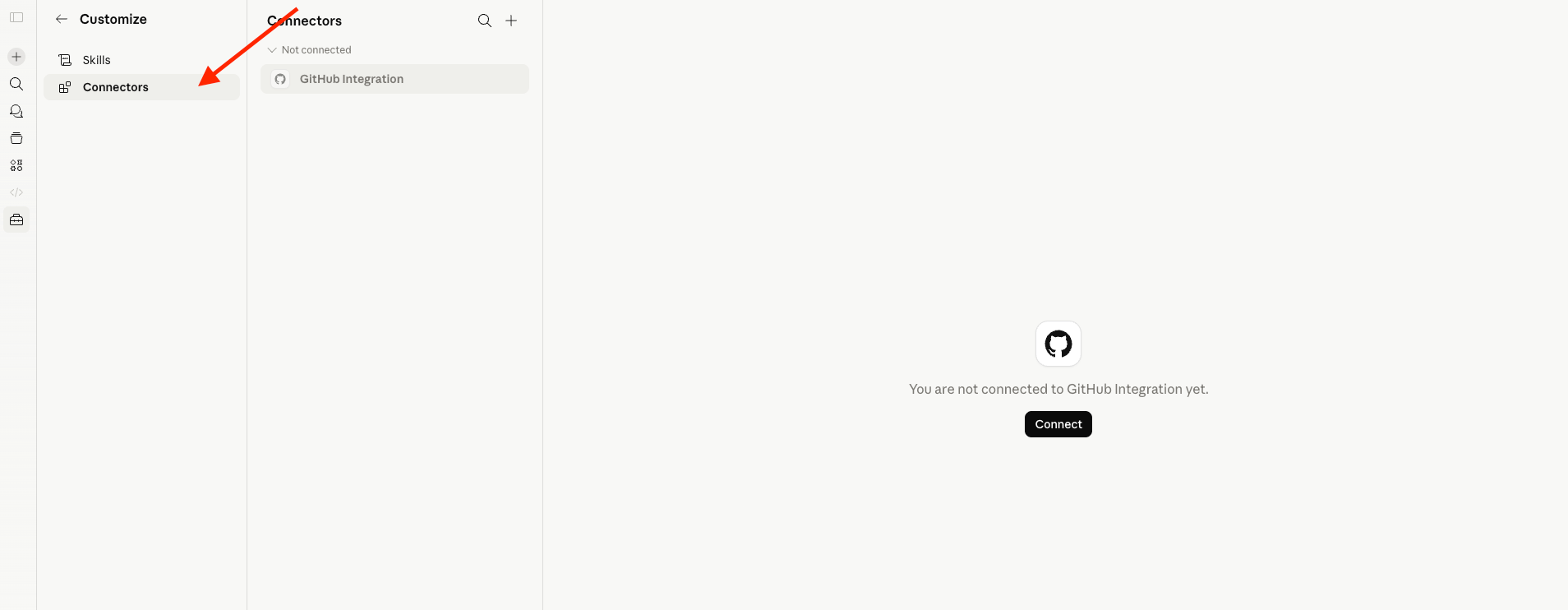
3. Go to Connectors
Inside the Customize menu panel, select the Connectors tab.
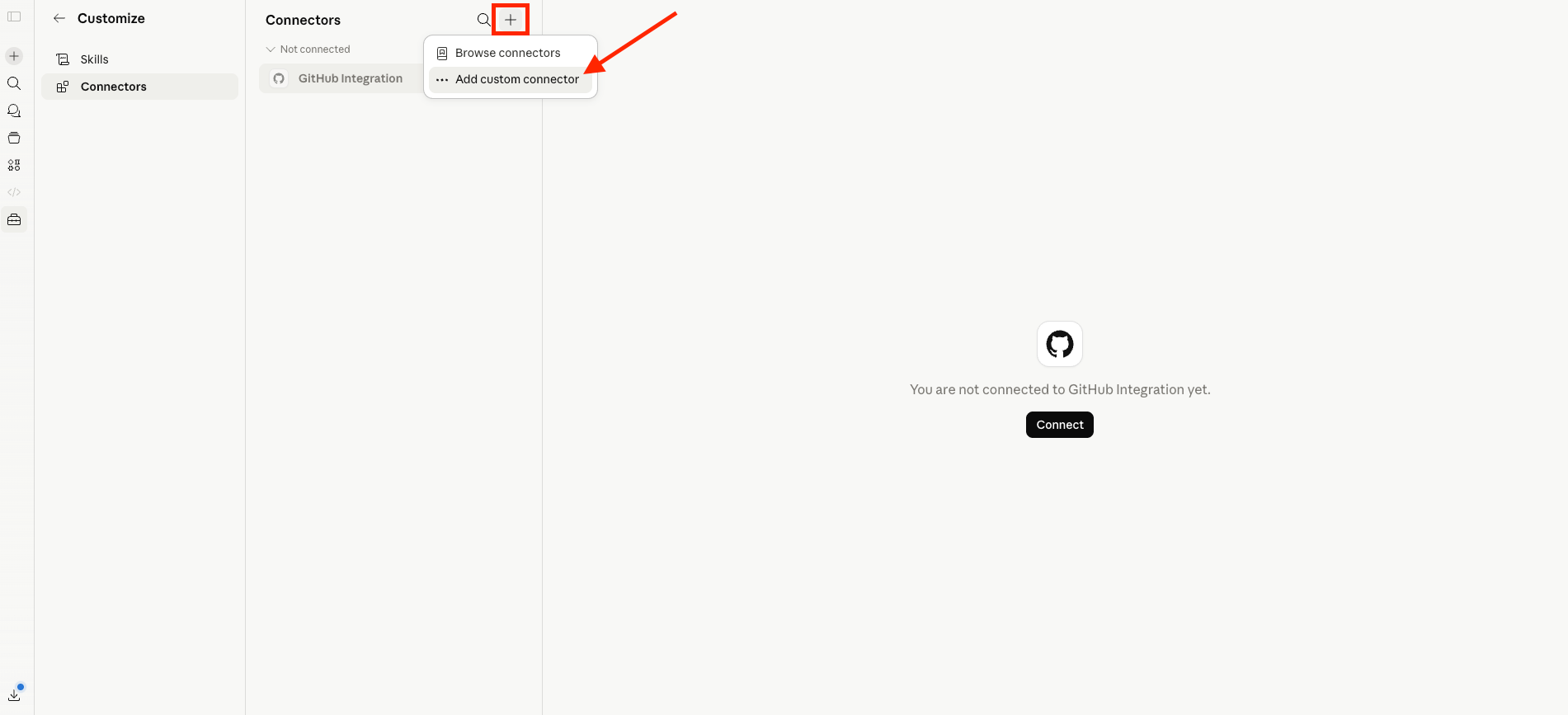
4. Add a Custom Connector
Click the + button next to Connectors, then select Add custom connector.
5. Enter your Connection Details
Fill out the configuration form using the credentials you copied earlier:
Expand the Advanced settings section to input your Client ID, then click Add.
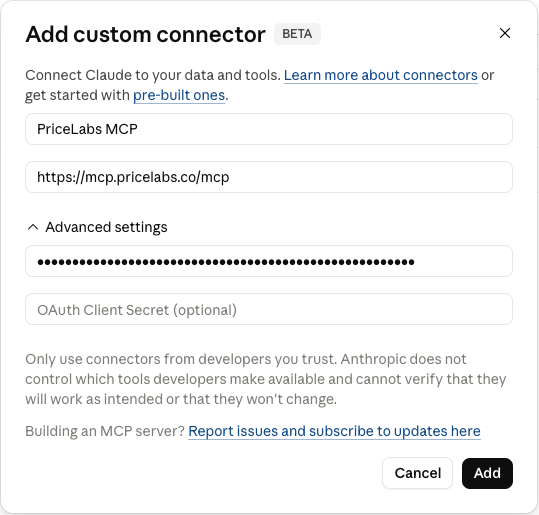
Once added, click Connect on the new PriceLabs MCP connector card to begin authorization.
6. Authorize with PriceLabs
Claude will redirect you to a PriceLabs secure login page. Sign in with your PriceLabs credentials and approve the connection to link the accounts.
7. Confirm in Claude
You will be redirected back to Claude. If prompted, click Connect one last time to finalize the setup.
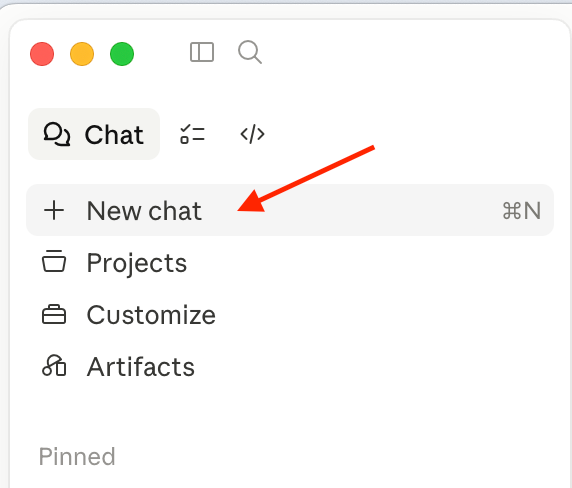
8. Start a New Chat
Important: PriceLabs MCP tools will only appear in new conversations. Open a new chat to start analyzing your data!
Test the connection by asking:
Setup video
Watch this walkthrough for a full visual guide to connecting PriceLabs MCP in Claude: