
Custom Clients
Custom clients let you connect PriceLabs MCP to additional AI platforms beyond the built-in connectors. Create your own OAuth credentials and use them to integrate PriceLabs with supported third-party AI agents.
Custom clients work with many AI platforms, including ChatGPT, Gemini, Meta AI, Perplexity, Cursor, Notion, n8n, Make, ClickUp and Langdock, as well as local AI agents (e.g. Claude Code or other CLI-based agents that use localhost callback URLs). Some platforms need to be enabled first: if your platform’s callback URL is rejected, contact support@pricelabs.co to request it.
Who can manage custom clients
Only the account admin (superadmin) can create, regenerate, or delete custom clients. Team members (sub-users) can see custom clients created by their admin and connect to them, but they cannot manage the credentials.
Add a custom client
1. Open MCP settings
Sign in to PriceLabs as the account admin and navigate to Account Settings → AI Connector (MCP).
2. Click Add Custom Connector
In the Custom Connectors section and click the + Add Custom Connector button.
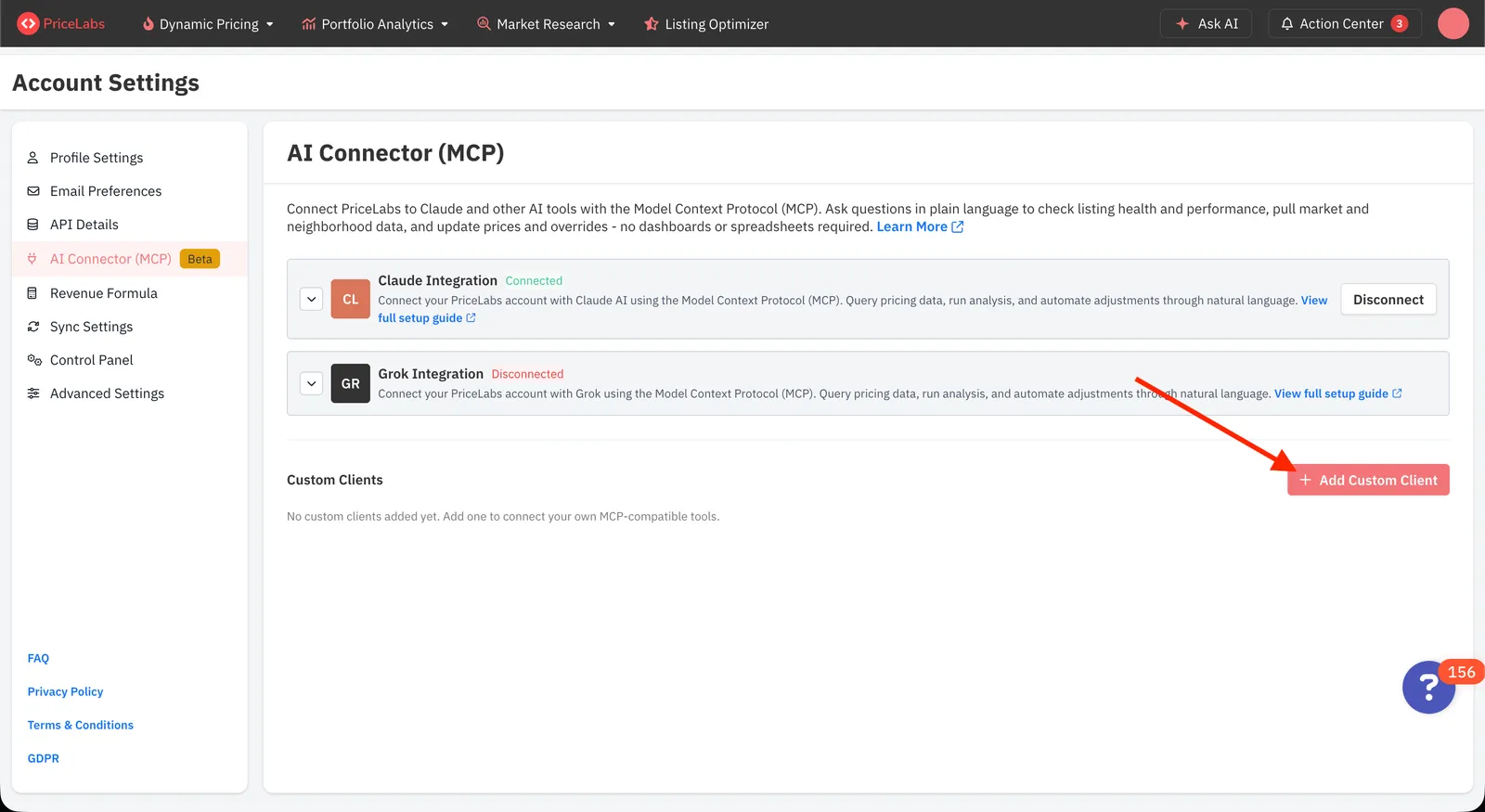
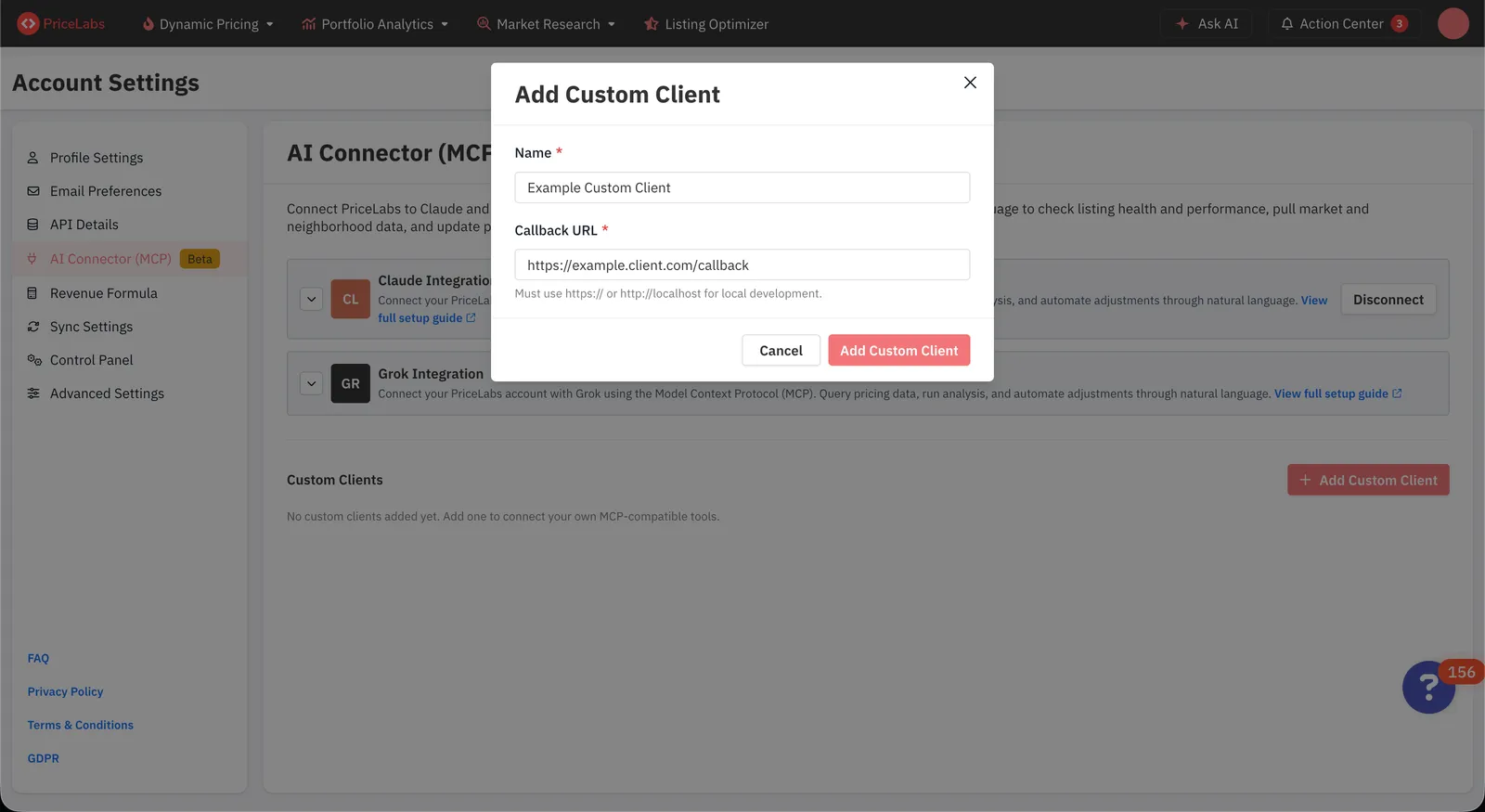
3. Enter connector details
In the modal, fill in:
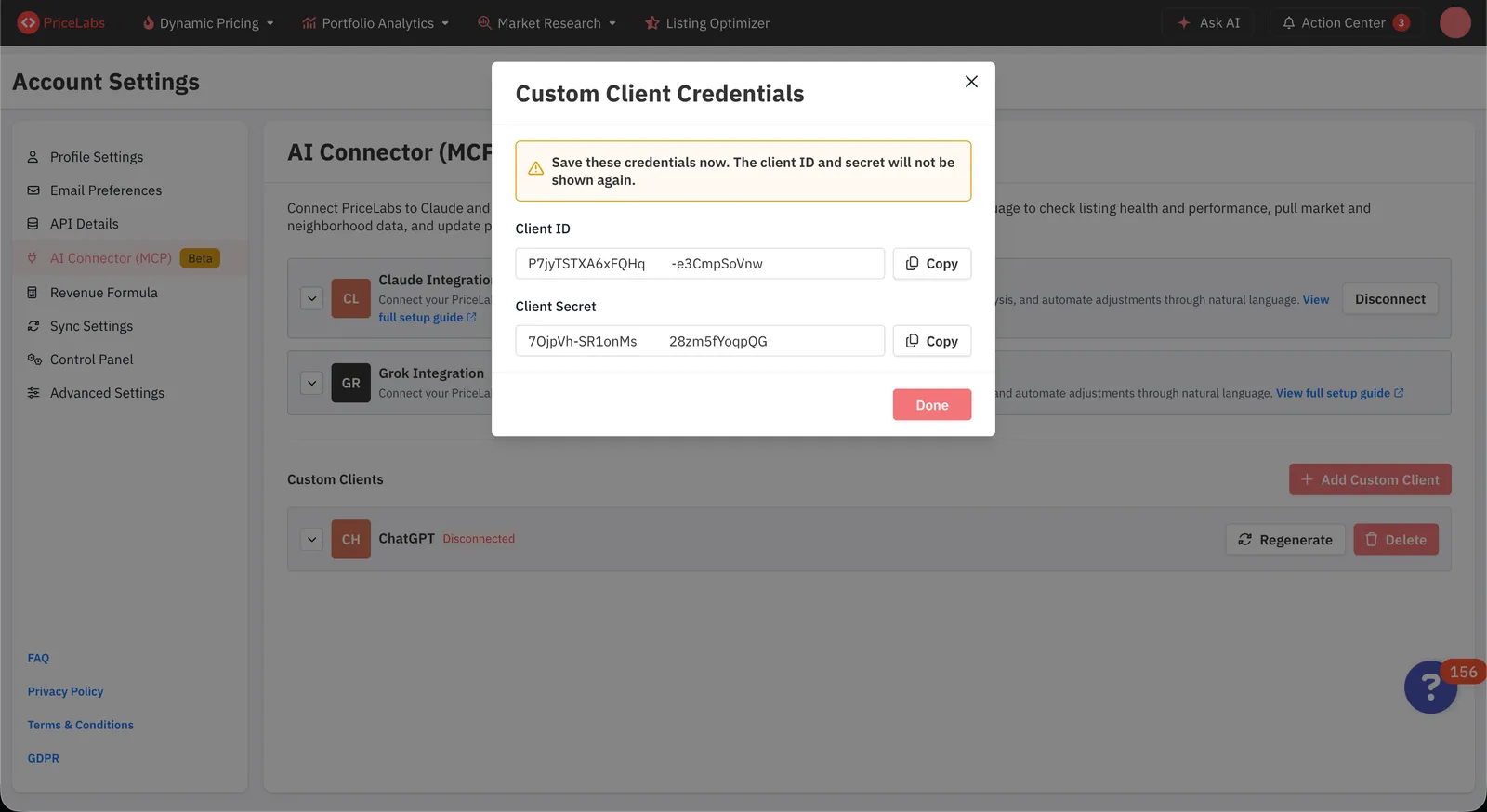
4. Save your credentials
After clicking Add Custom Client, PriceLabs will generate a Client ID and Client Secret and display them once.
The Client Secret is shown only once and cannot be retrieved again. Copy both the Client ID and Client Secret and store them in a secure location immediately.
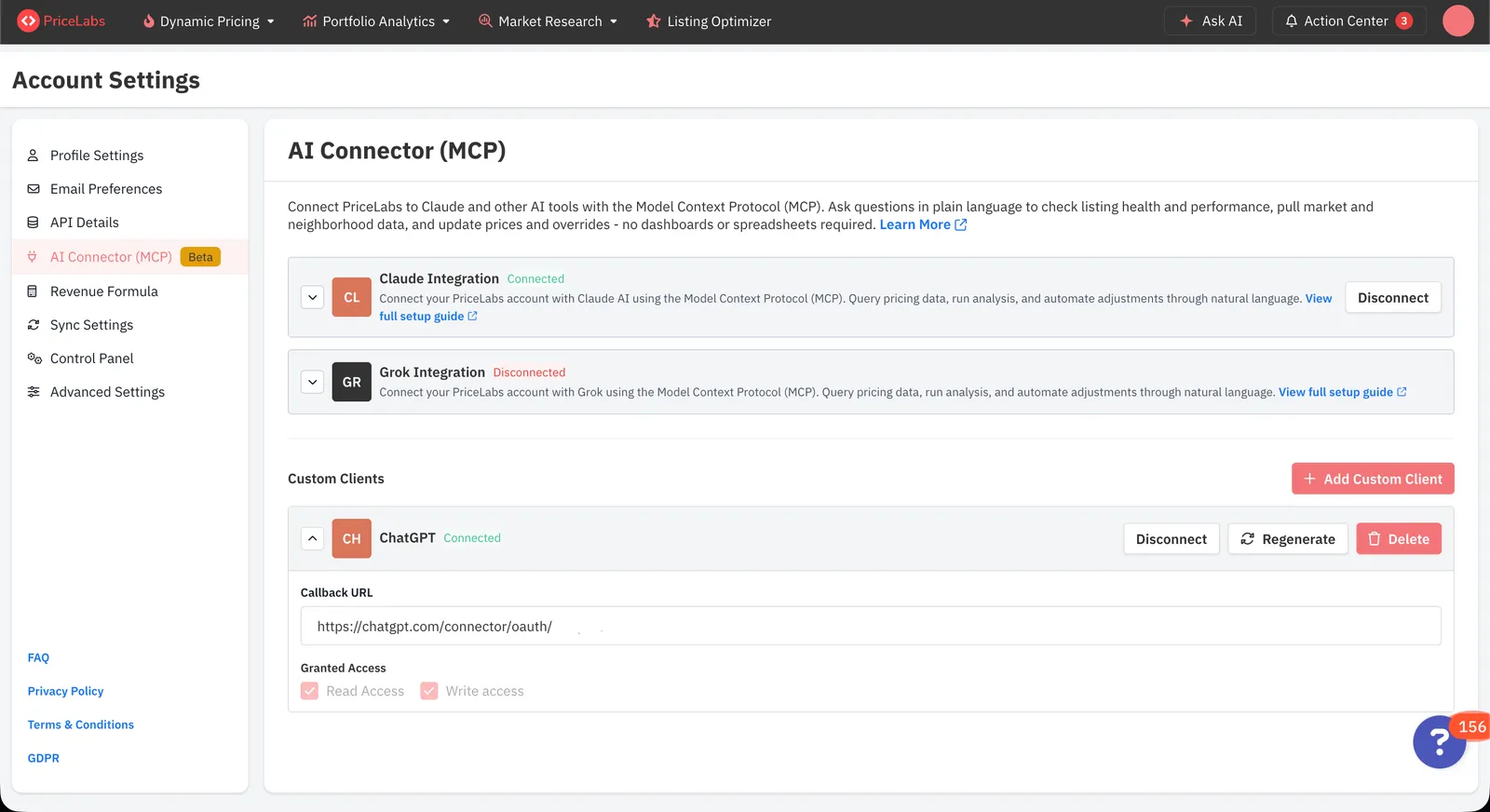
5. Verify the connection
Once you complete the OAuth flow from the AI platform side, the custom client card will show a Connected status along with the granted scopes — one per permission you approved, such as Read, Write and Customization write.
Regenerate credentials
If you lose your Client Secret or need to rotate credentials, the account admin can regenerate them.
- Navigate to Account Settings → AI Connector (MCP).
- Expand the custom client card.
- Click Regenerate.
- Confirm the action in the dialog.
Regenerating credentials immediately revokes all active connections for every user connected through that custom client. All users will need to re-authorize with the new credentials.
A new Client ID and Client Secret will be displayed. Save them immediately — the secret will not be shown again.
Disconnect a custom client
If you want to revoke your current connection to a custom client without deleting or regenerating it, you can disconnect directly from PriceLabs.
- Navigate to Account Settings → AI Connector (MCP).
- Find the custom client card showing a Connected status.
- Click the Disconnect button.
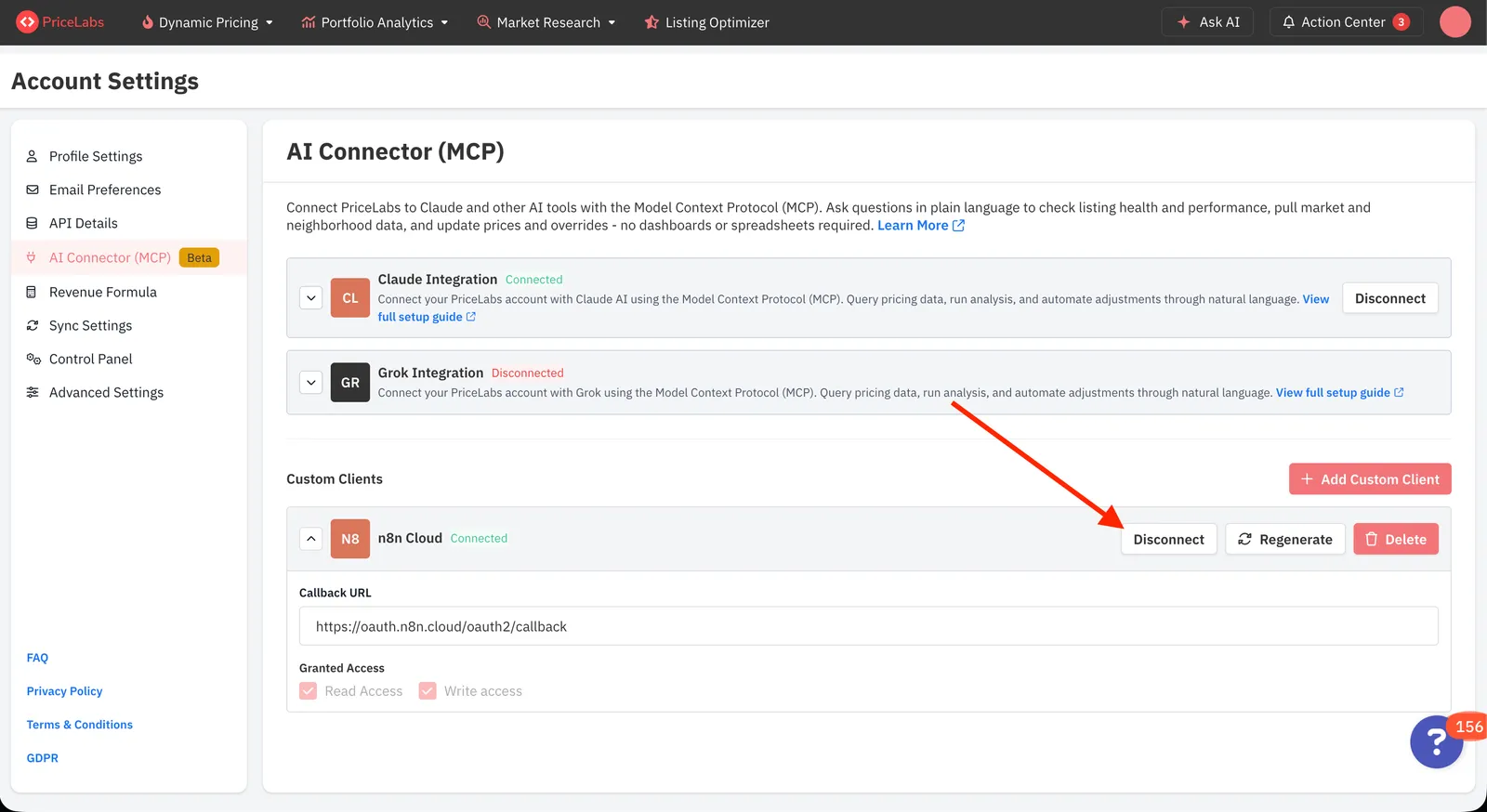
Disconnecting revokes the OAuth token for your account only — other team members who are connected through the same custom client will remain connected. The custom client itself is not removed, and you can reconnect at any time by completing the OAuth flow again from the AI platform side.
Delete a custom client
- Navigate to Account Settings → AI Connector (MCP).
- Expand the custom client card.
- Click Delete.
- Confirm the action in the dialog.
Deleting a custom client permanently removes it and revokes all active connections.
Limits and restrictions
Allowing localhost as a callback URL enables local AI agents to connect to
your PriceLabs account. Be cautious — any application running on the same
machine could potentially intercept the OAuth callback. Only use localhost
callbacks on trusted machines and ensure no untrusted software is running on
the same port.
Troubleshooting
Using Cursor
Create a custom client with Cursor’s callback URL, https://www.cursor.com/agents/mcp/oauth/callback, then enter that custom client’s Client ID and Client Secret in Cursor.
The redirect URI does not match
At sign in, the redirect URI sent by the AI platform must exactly match the Callback URL saved on the custom client, including the scheme, www, the full path and any trailing slash. If it differs, update the callback URL on the custom client or in the AI platform so both are identical.
”The requested redirect uri is malformed or doesn’t match client redirect URI”
This usually means the Client ID belongs to a different client. Always use the Client ID and Client Secret of your own custom client. The Client IDs of the built-in Claude and Grok connectors only accept their own callbacks and cannot be reused in other tools.
I lost my Client Secret
The secret is shown only once at creation. Use Regenerate on the custom client to get a new Client ID and Client Secret. See Regenerate credentials.
The tool asks for dynamic client registration
Dynamic client registration is not supported. Add a custom client as described above and enter its Client ID and Client Secret in the tool instead.
”Redirect URL is not allowed. Only whitelisted hosts and localhost are permitted.”
This AI platform’s callback URL has not been enabled yet. Callback URLs must use https, or http for localhost and 127.0.0.1 only. Contact support@pricelabs.co with the callback URL to request it.