
Enable MCP for team members
Account admins can grant team members access to PriceLabs MCP from the dashboard. Once enabled, the team member will see a new AI Connector (MCP) tab in their Account Settings with instructions for connecting to Claude.
Team member MCP connections strictly follow the listing-level read and write access permissions the account admin has already set for that team member. Enabling MCP access does not grant access to listings or actions beyond what the team member is already allowed to use.
Enable MCP access
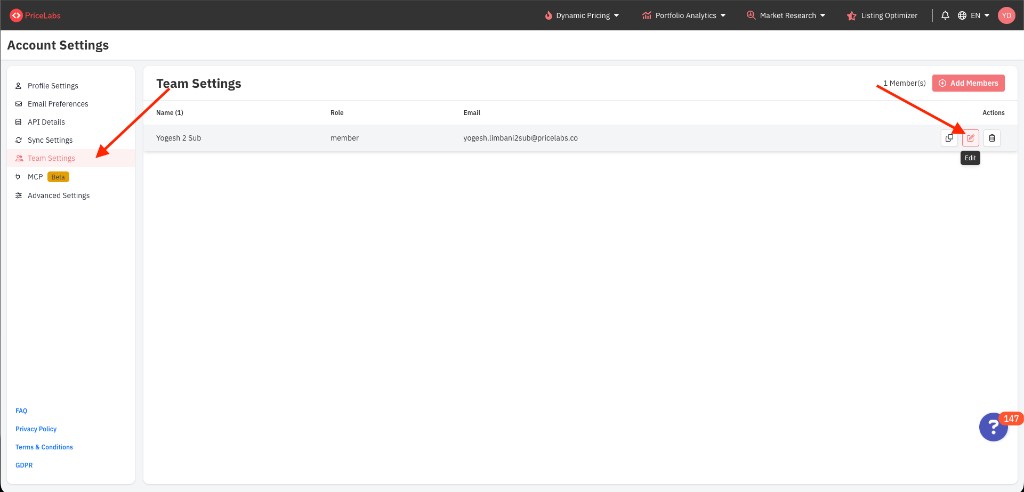
1. Go to Team Settings
Sign in to PriceLabs as the account admin and navigate to Account Settings → Team Settings.
2. Edit the team member
In the team members table, find the team member you want to enable and click the Edit icon under the Actions column.
3. Allow MCP access
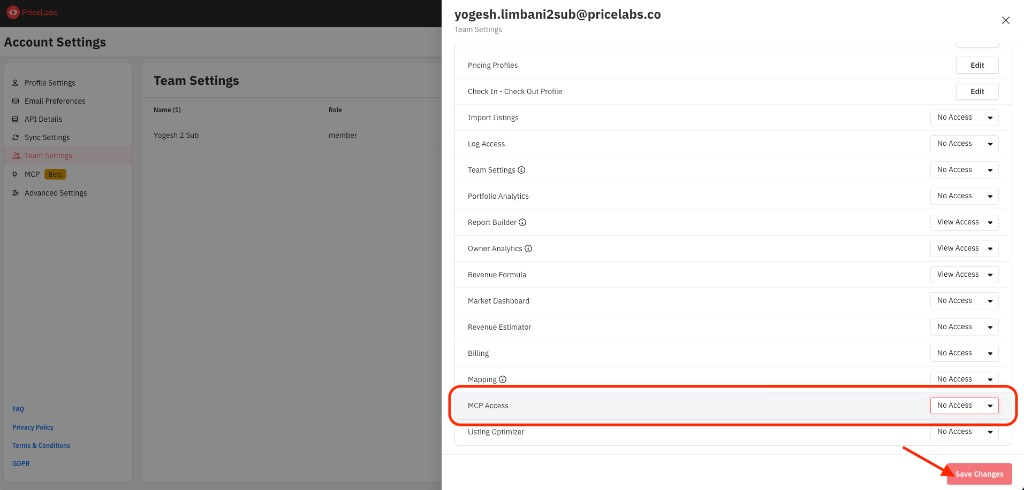
In the edit panel, locate the MCP Access dropdown and select Allow.
4. Save your changes
Click Save Changes to apply the update.
What happens next
After MCP access is enabled, the team member will see a new AI Connector (MCP) tab in their Account Settings. That tab includes their credentials and step-by-step instructions for connecting PriceLabs MCP in Claude.
Share Connect to Claude with your team member so they can complete the setup.