
Connect to Claude
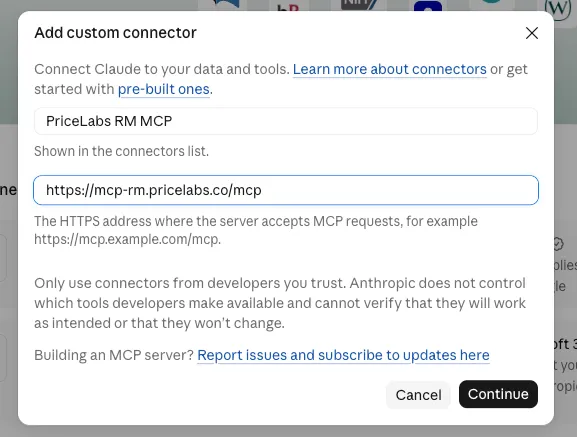
RM Partners must use https://mcp-rm.pricelabs.co/mcp — not the standard
customer URL https://mcp.pricelabs.co/mcp.
Link your PriceLabs account to Claude to give your AI assistant secure, direct access to your pricing and market data. Follow these steps to get connected.
Get your MCP credentials
Before heading over to Claude, you will need to grab your secure credentials from your PriceLabs dashboard:
- Navigate to Account Settings.
- Select the AI Connector (MCP) tab.
- Copy your MCP URL and Client ID. Keep these handy for the next step!
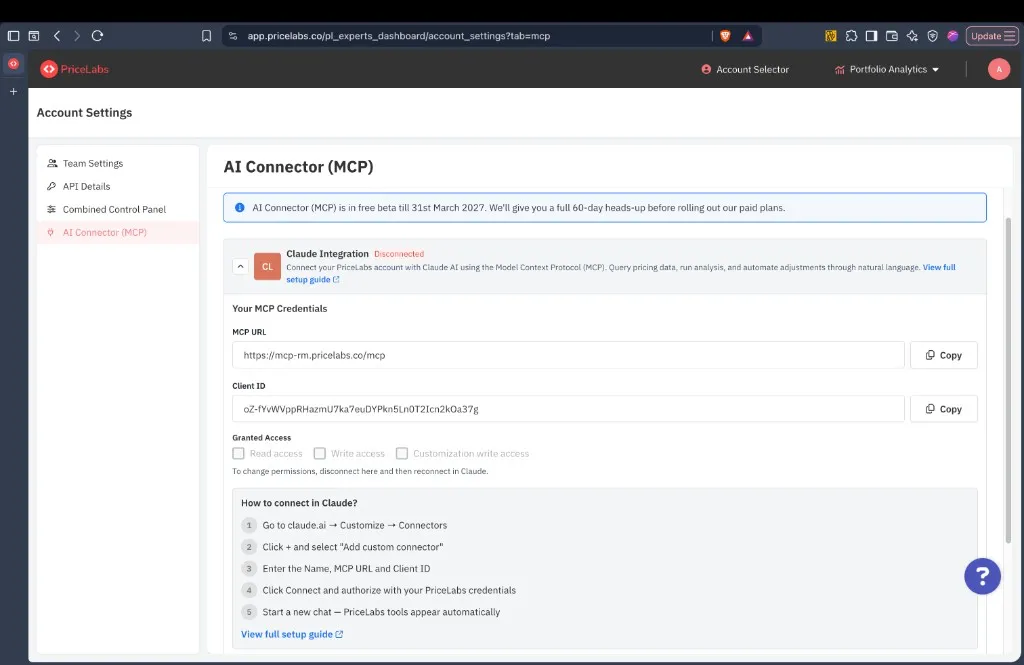
You can choose Read access, Write access, and Customization write access when authorizing the connection. Each is granted on its own — customization write is what allows pricing rules such as seasonality, last minute prices and day of week adjustments to be changed, and write access alone does not include it. To change these permissions later, disconnect from PriceLabs (Account Settings → AI Connector (MCP)) first, then reconnect using the steps below. Disconnecting in Claude alone does not update permissions — see Disconnect.
Connect in Claude
1. Log into Claude
Go to claude.ai and sign in to your account.
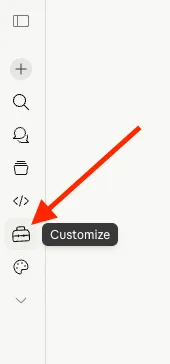
2. Open Customize
Look for the Customize icon (the briefcase) in the left sidebar and click it.
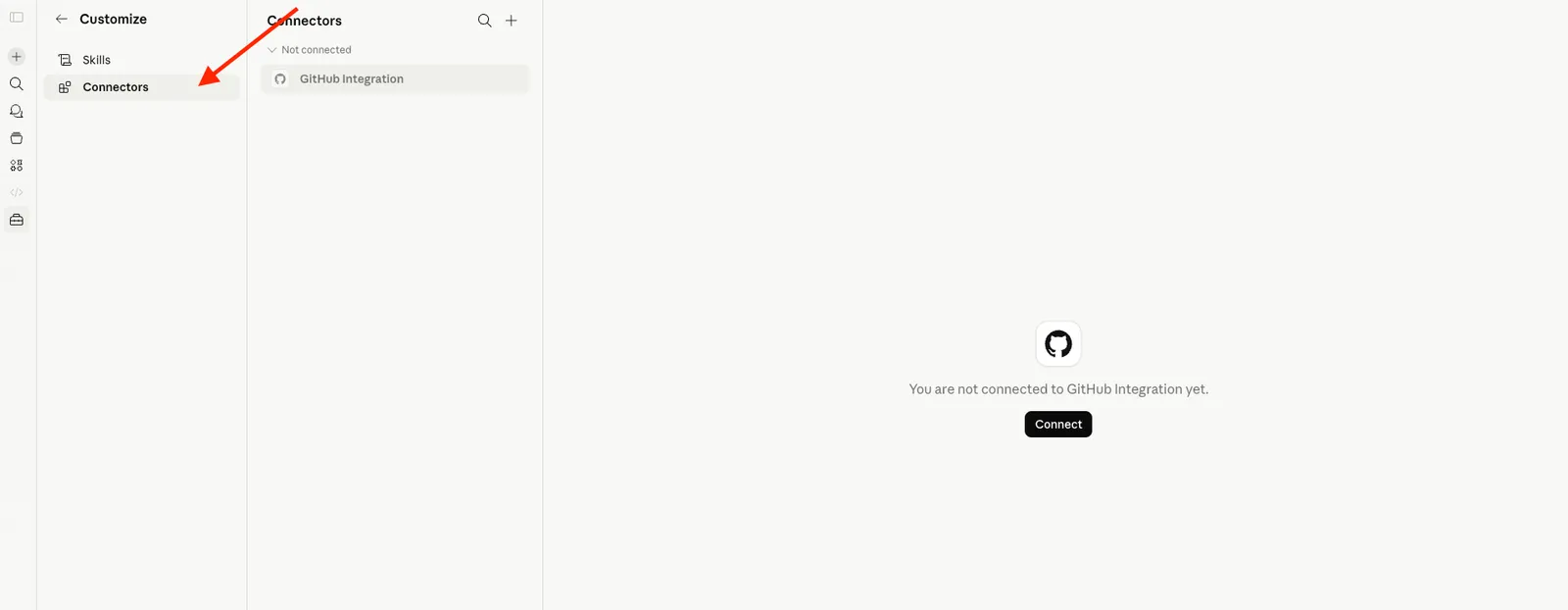
3. Go to Connectors
Inside the Customize menu panel, select the Connectors tab.
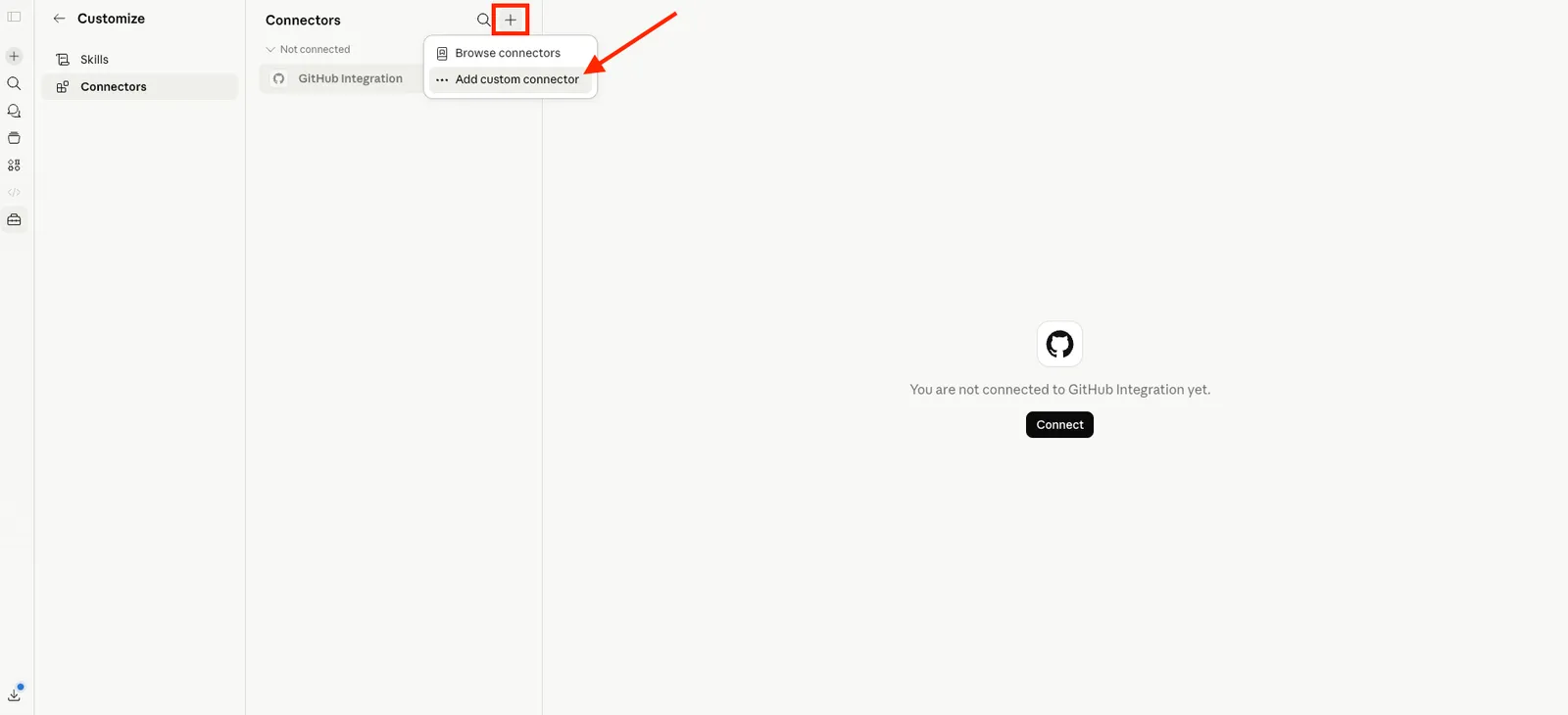
4. Add a Custom Connector
Click the + button next to Connectors, then select Add custom connector.
5. Enter Name and URL
On the first screen, fill in:
Then click Continue.
6. Enter your OAuth client ID
On the next screen:
- Under OAuth client, select Use your own OAuth client.
- Paste the Client ID into the OAuth client ID field:
- Leave the OAuth client secret blank.
- Click Add.
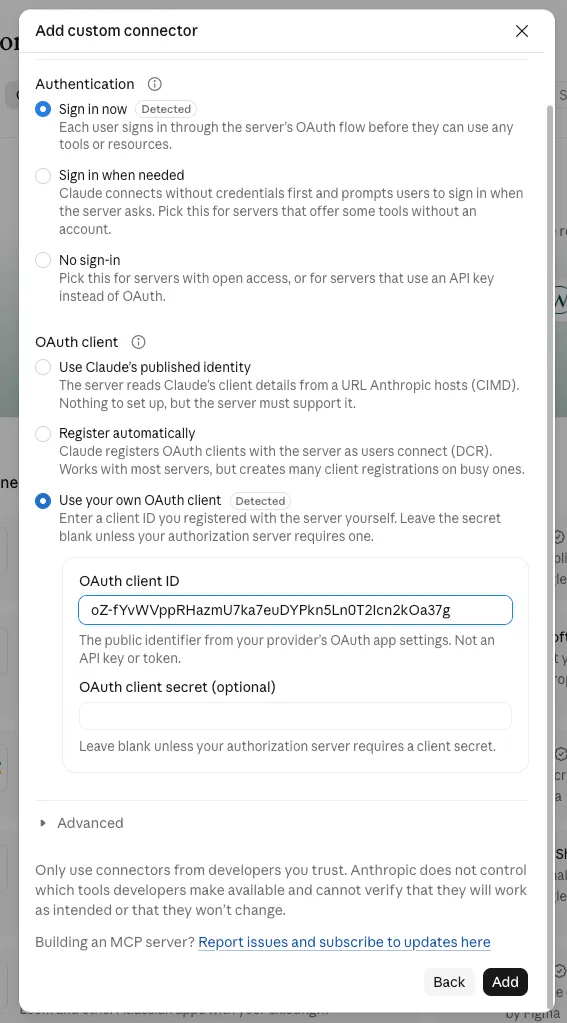
Once added, click Connect on the new PriceLabs RM MCP connector card to begin authorization.
7. Authorize with PriceLabs
Claude will redirect you to a PriceLabs secure login page. Sign in with your PriceLabs credentials and approve the connection to link the accounts.
8. Confirm in Claude
You will be redirected back to Claude. If prompted, click Connect one last time to finalize the setup.
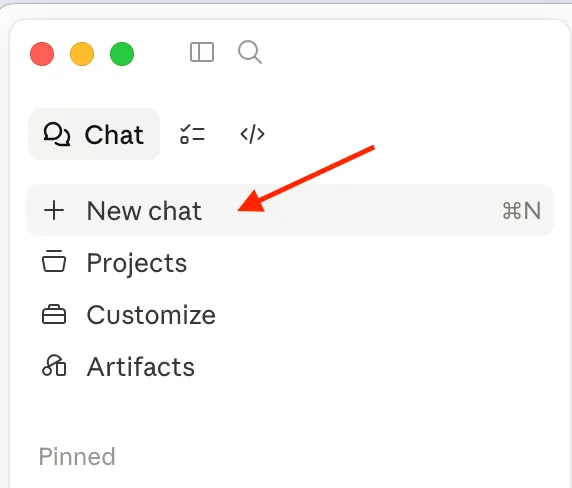
9. Start a New Chat
Important: PriceLabs MCP tools will only appear in new conversations. Open a new chat to start analyzing your data!
Test the connection by asking:
Setup video
Watch this walkthrough for a full visual guide to connecting PriceLabs MCP in Claude:
Disconnecting
Disconnect the PriceLabs MCP integration when you no longer need access, want to revoke permissions, or plan to reconnect with updated credentials or access levels. Depending on your goal, you may need to disconnect in both PriceLabs and Claude.
Disconnecting in Claude alone stops new tool calls in future chats, but it does not change your read or write permissions. To change permissions, disconnect from PriceLabs first (Account Settings → AI Connector (MCP)), then reconnect in Claude and choose the access level you want.
Disconnect in PriceLabs
Use this when you want to fully revoke the integration or change read/write permissions before reconnecting.
- Sign in to PriceLabs and go to Account Settings → AI Connector (MCP).
- Click Disconnect on the Claude Integration card.
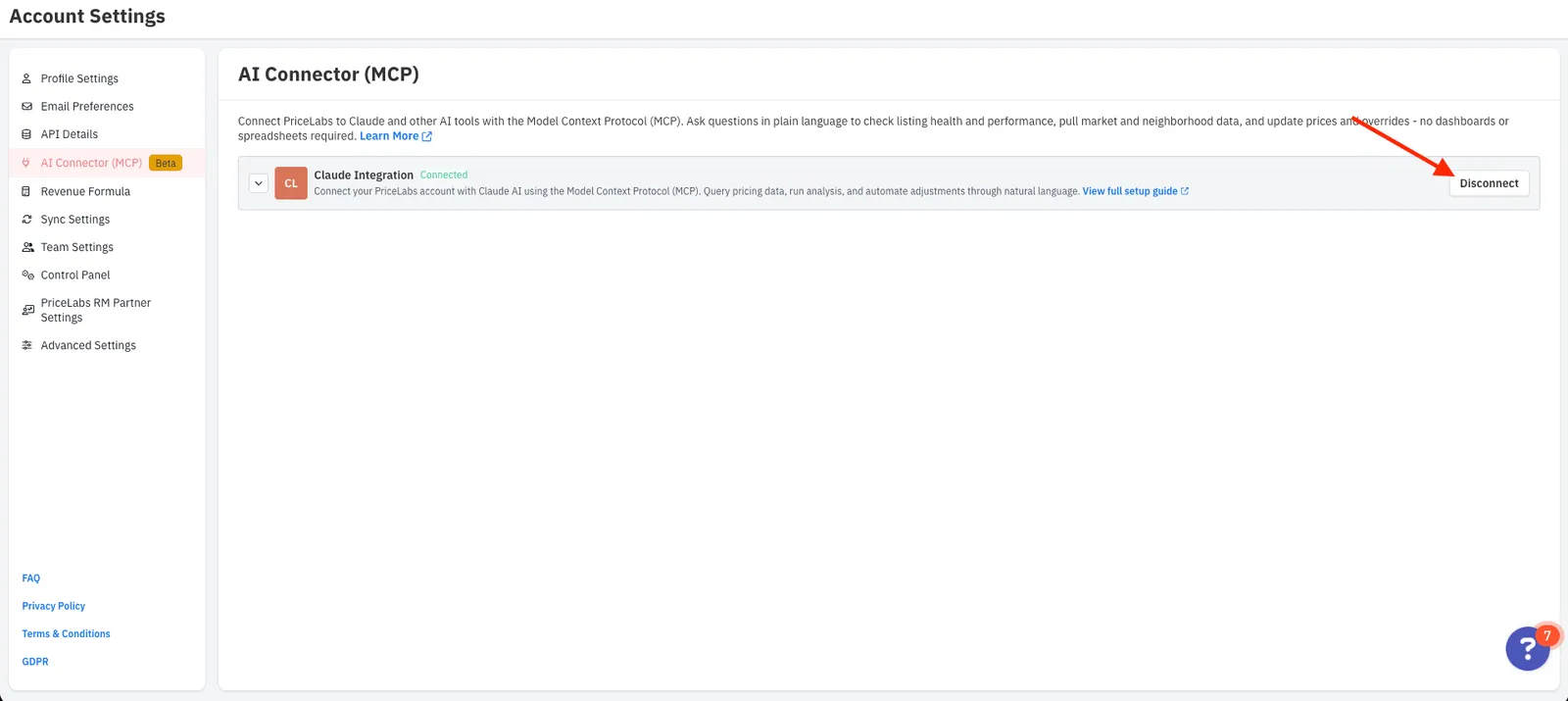
To change permissions, disconnect here first, then follow the connection steps above to reconnect and select Read access and/or Write access again.
Disconnect in Claude
Use this to remove the PriceLabs connector from Claude. If you also disconnected in PriceLabs, complete both steps for a full removal.
- Go to claude.ai and sign in to your account.
- Open Customize (the briefcase icon) → Connectors.
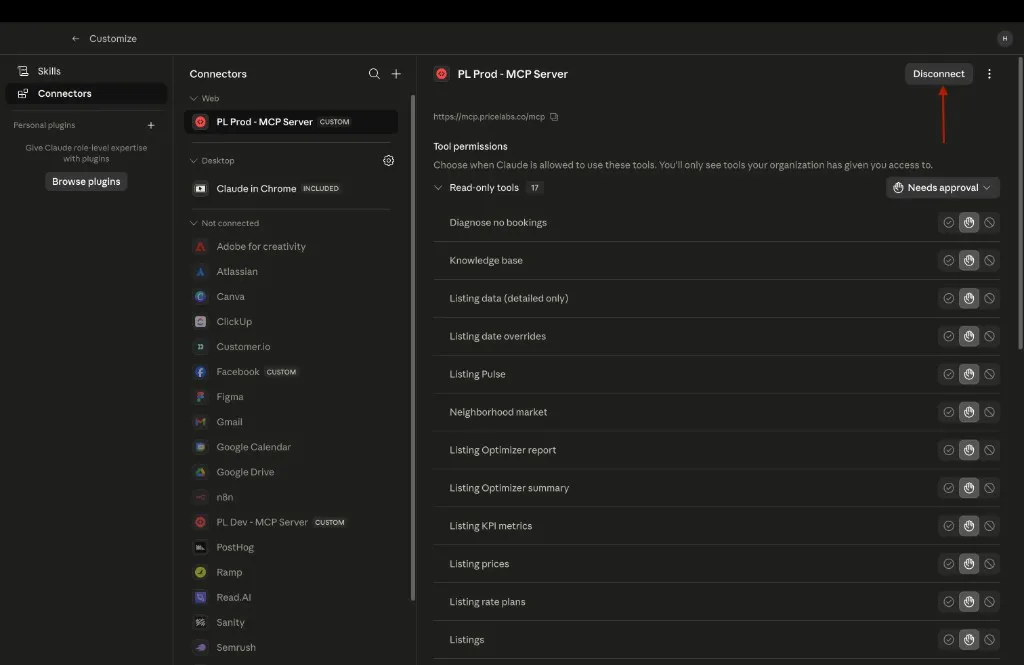
- Under Web, click your PriceLabs MCP connector (for example, PriceLabs RM MCP).
- You should see the connector URL (
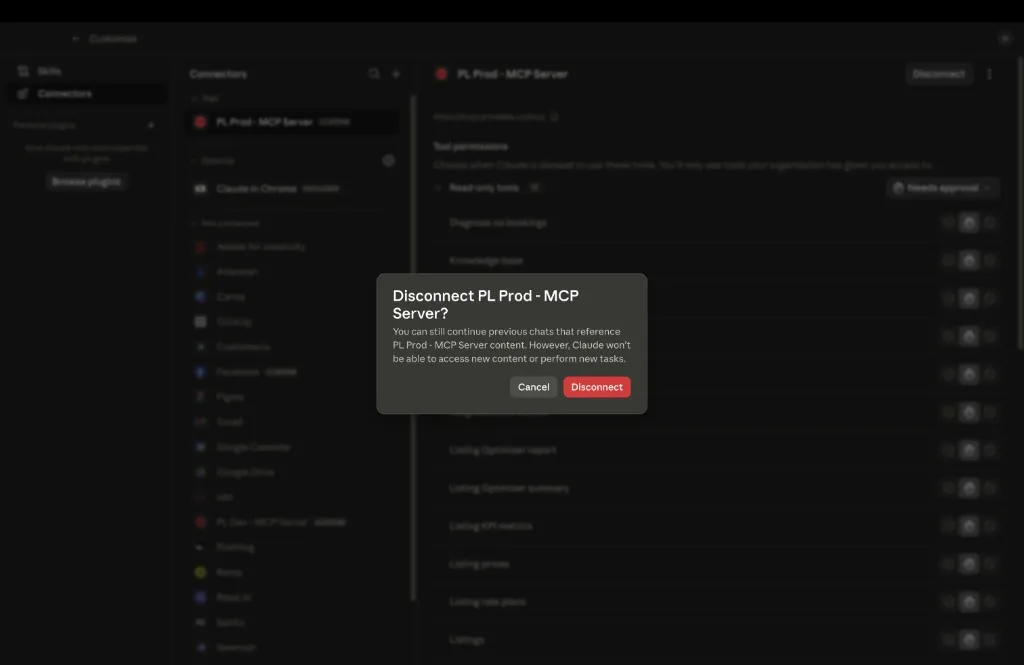
https://mcp-rm.pricelabs.co/mcp) and the list of available tools. - Click Disconnect in the top-right corner, then confirm in the dialog.
After disconnecting
- New chats will no longer have access to PriceLabs MCP tools.
- Previous chats that referenced PriceLabs data may still show earlier results, but Claude cannot run new PriceLabs actions.
- To use PriceLabs MCP again, disconnect in PriceLabs if needed, then follow the connection steps above and authorize a fresh connection.