
Enable MCP for RM team members
Admin RM Partners can grant team members access to PriceLabs RM MCP from the PL Experts dashboard. Once enabled, the team member will see the AI Connector (MCP) tab in their Account Settings and can connect Claude (and other clients) with their own login.
Enabling MCP access allows the team member to use MCP for all accounts they already have permission to access. It does not grant access to additional managed accounts beyond what you have already assigned.
Enable MCP access
1. Go to Team Settings
Sign in to the PL Experts dashboard as the admin RM Partner and navigate to Account Settings → Team Settings.
2. Turn on MCP Access
In the team members table, find the team member you want to enable. In the MCP Access column, switch the toggle on.
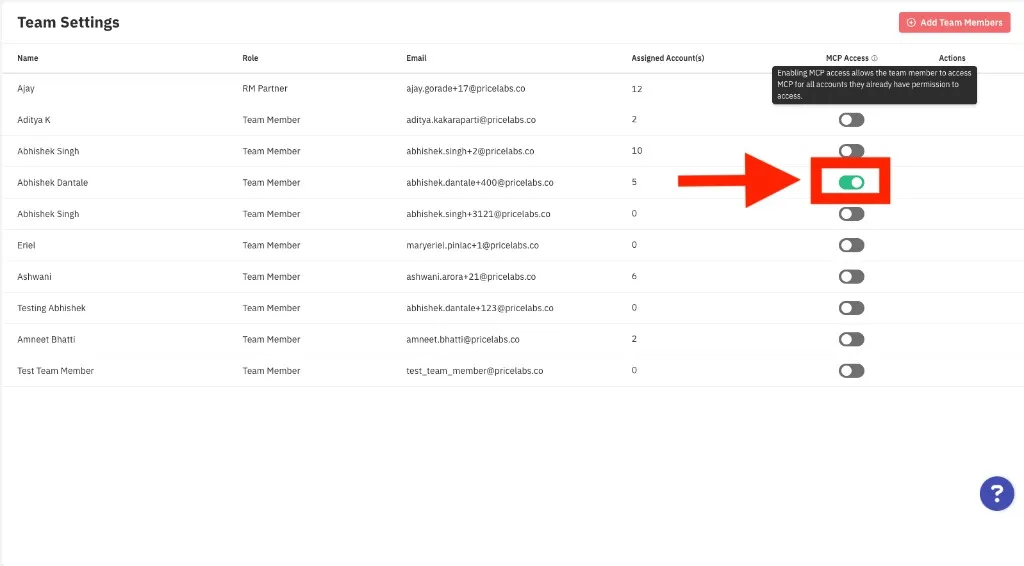
The change is saved immediately — there is no separate Save step.
What happens next
After MCP access is enabled, the team member will see the AI Connector (MCP) tab in their Account Settings. Share Connect to Claude so they can complete the setup using:
They must sign in with their own RM team member credentials when authorizing — not the admin’s login.
To use ChatGPT or other custom connectors, the admin RM Partner creates the Custom Client once and shares the Client ID and Client Secret with the team member. The team member still uses https://mcp-rm.pricelabs.co/mcp as the server URL.
Turn off MCP access
Switch the MCP Access toggle off for that team member. Turning access off revokes that team member’s active MCP connections. Only the admin RM Partner can grant or revoke access — team members cannot enable it themselves.
Next steps
- Connect to Claude — RM Partner Claude setup (
mcp-rmURL) - Custom Clients — connect additional AI platforms
- Explore MCP tools — full tool reference and prompt examples